 Vodu
Vodu How to animate a picture with AI
Last updated: September 2026
To animate a picture, open an AI image-to-video app, upload the photo, describe the movement you want in one short line, and let it generate the frames — about a minute on an iPhone with Vodu AI. If you only need several photos to move across the screen rather than the subject inside one photo to move, a slideshow in the iPhone Photos app does that for free.
Want the subject in the photo to actually move? Vodu AI's image-to-video animates a still in about a minute, on the phone the photo is already on — free to download, nothing to upload to a website.
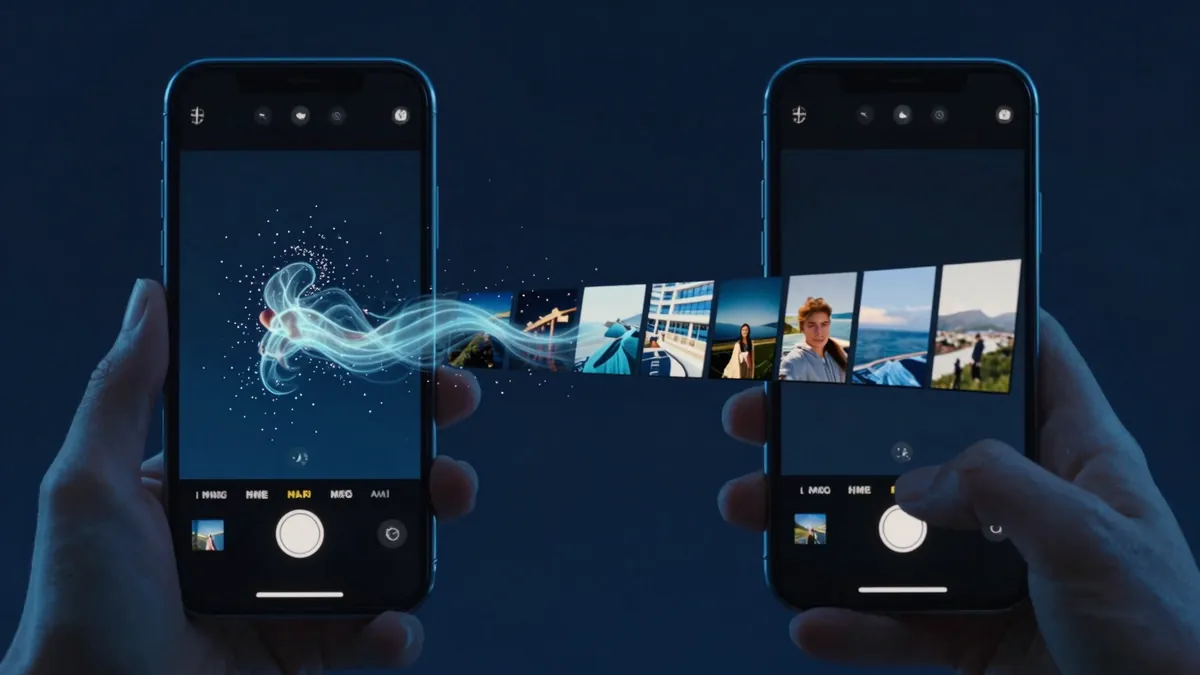
“How do I animate a picture?” hides two completely different jobs, which is why so many answers to it are unsatisfying. Some people want the thing in the photo to move — a face that blinks, water that flows, a grandparent who turns towards the camera. Others want a set of photos arranged into a moving montage. Only the first is animation in the strict sense, and only AI can do it. This guide covers both honestly, including the free built-in tools, so you can pick the right one. With AI Overviews now appearing in roughly 45% of Google searches (2025 industry data), a straight answer is worth more than a sales pitch.
The 60-second version
- Pick a sharp, well-lit photo, and crop it so the subject fills the frame.
- Open an AI image-to-video app — Vodu AI on iPhone, free to download.
- Upload the picture and write one short line describing the movement.
- Generate, wait about a minute, and look at the result honestly.
- Regenerate two or three times, keep the most natural take, and save it.
Everything below is detail on those five steps: which photos cooperate, what to write, and what to do when the first attempt looks wrong.
Method 1: animate the image with AI (the only way the subject moves)
AI image-to-video is the method behind every “living photo” clip you have scrolled past. The model reads your still, works out the shapes and depth in it, and renders new frames in which those shapes move. Here is the loop in Vodu AI:
- Open Vodu AI and choose the image-to-video tool.
- Upload your photo — sharp and well-lit works best.
- Describe the motion in one short line, such as “slow zoom, hair moving in the breeze.”
- Generate and wait about a minute for the animated clip.
- Save or share the take you like, straight to TikTok, Reels or Shorts.
This is the real difference between animation and a slideshow: the AI creates video frames that never existed, so the subject in the picture appears to move. Vodu AI is free to download and rated 4.5 out of 5 from 24 App Store ratings (as of July 2026). For the full feature detail, see the image to video generator page, or the photo animator page for the animation angle specifically.
Consent first: when a photo shows a real person, only animate it with their permission, keep the result tasteful, and follow each platform's rules on synthetic media.
Method 2: make a moving slideshow on iPhone (free, built in)
If what you actually want is a montage, your iPhone already does it at no cost. In the Photos app, open an album or a Memory, tap play, and it assembles a video with music, pans and transitions automatically. You can change the song, the length and the mood, then export it as a normal video file. It is the quickest way to turn many pictures into a video without installing anything — but the photos themselves stay static. The camera moves; the subject does not.
Method 3: build it in CapCut or a template app
For more control over a montage, a free editor like CapCut works well. Import your photos, drop them on the timeline, and use a photo-to-video template to add beat-synced transitions, text and effects. It takes a few more minutes than the Photos app and gives you a polished, trend-ready result. CapCut has a free tier with optional paid features — though a lot of what used to be free now is not, which is why we keep a page of CapCut alternatives. Like Method 2, it moves the frame rather than the subject — a zoom on a face is not the same thing as a face that moves.
Animate a picture, an image, a photo: same job, different words
People search for this in a dozen phrasings, and a couple of them do mean genuinely different things:
- Animate a picture / animate an image / animate a photo — identical jobs. Singular subject, real motion, Method 1.
- Animate pictures or photographs (plural) — usually a montage. That is Method 2 or 3, unless you intend to animate each one separately and cut them together, which is a perfectly good hybrid.
- Animate a photograph — more often than not an old print or a family archive shot. Same as Method 1, with the extra prep in the section below.
- Make a picture move / bring a photo to life — the plain-English version of Method 1.
- Animate a photo into a cartoon — a different job entirely: that is style transfer, not motion. Adding movement and changing art style are separate operations.
What kind of photo animates well
The source picture decides most of the outcome, long before you write a prompt.
- Faces animate well when they are sharp, front-facing, evenly lit and unobstructed. Sunglasses, hair across the mouth and deep shadow all remove the detail the model needs.
- Landscapes and water are the easiest wins. Clouds, waves, fog, fire and foliage have no fixed identity to hold, so the motion almost always looks convincing.
- Old scans and prints work, and are the most rewarding, provided you photograph them properly first.
- Products and artwork animate cleanly with a camera move — a slow push in, a gentle parallax — rather than by having the object itself perform.
- Crowds, group shots and busy scenes are the hardest. Many small faces at low resolution is exactly the case AI motion handles worst. Crop to one or two subjects instead.
How to animate an old or damaged photo
Archive photos are the reason a lot of people try this at all, and the prep matters more than the prompt:
- Copy the print properly. Lay it flat in soft daylight and shoot straight down with your phone. No flash — glare on a glossy print destroys the face you are trying to animate.
- Crop tight. Remove the album page, the border and the white margin so the model spends its attention on the subject.
- Clean it up before animating. Use AI photo editing to lift a faded or low-contrast scan first; a clearer still animates better than a damaged one.
- Ask for very little. “A slight smile and a small head turn, subtle motion” is the right register. Old photos are low on detail, and big movement is where they fall apart.
- Accept a short clip. Two convincing seconds of a grandparent moving is worth more than six seconds that stop looking like them.
Doing it on iPhone, start to finish
The whole workflow fits on the phone the photos already live on. Choose the picture in Photos and crop it there. Open Vodu AI, pick image-to-video, and select the cropped image. Type your one-line prompt, generate, and wait about a minute. Watch the result at full size rather than as a thumbnail — problems hide at small scale. Regenerate a couple of times, keep the best take, and save it to the camera roll. If the clip is good but ends too early, lengthen it with AI video extension rather than generating a longer one from scratch. No computer is involved at any point.
Common failures, and what to do about them
- Warped hands and fingers. The classic. Crop hands out of the frame, or ask for motion that does not involve them.
- Melted or shifting backgrounds. Usually a busy background competing with the subject. Crop tighter, or pick a photo with a plainer backdrop.
- The face stops being the right person. Ask for less movement, and keep the clip short — identity drifts the longer a generation runs.
- Rubbery, over-animated motion. The prompt asked for too much. Delete words rather than adding them.
- Nothing much happens. The opposite problem: name one specific movement and one camera move instead of a mood.
- Every take looks wrong. The photo, not the prompt, is the problem. Blur, heavy shadow or very low resolution cannot be prompted around.
Which method should you choose?
- You want the picture itself to move → Method 1 (AI image-to-video, Vodu). Nothing else makes a still actually animate.
- You want a quick music montage of many photos → Method 2 (iPhone Photos). Free and built in.
- You want a polished, edited montage → Method 3 (CapCut). More control, still free to start.
- You want the best of both → animate the hero shots in Vodu, then assemble everything in CapCut.
The one-line answer: animating a picture means generating new frames with AI, and everything else is a camera move over a still. Pick based on which of those you actually wanted.